Free AI Photo Tools 2026: The Complete Guide to Gendia's Browser Suite
Remove backgrounds, upscale photos, restore old images, retouch portraits, erase objects — all free in your browser, no signup. The complete guide to Gendia's 7 AI photo tools.
Most AI photo work in 2026 doesn't need a full creative platform. You don't need to learn prompting. You don't need to compare 30 models. You just need to remove a background, upscale a photo, erase an object, or restore an old image — fast, in your browser, free.
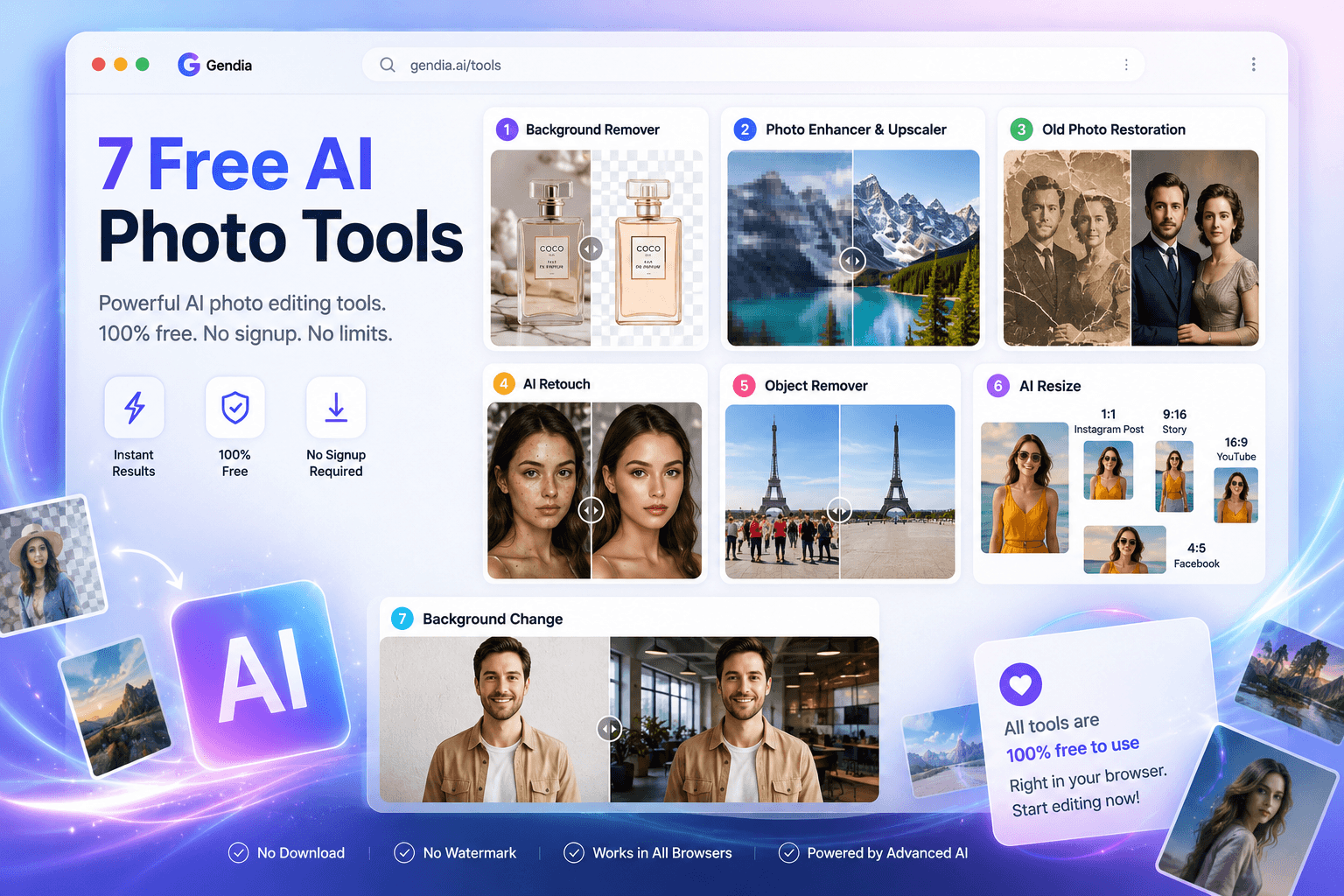
That's exactly what Gendia's AI photo tools do. Seven free in-browser tools that handle the everyday photo edits that used to require a paid editor or a learning curve. No download. No subscription. No prompt engineering. Drop the photo, click the tool, get the result in seconds.
This is the complete guide to all 7 tools, what each one does best, and how to use them.
Try the free AI photo tools on Gendia
The shortcut
If you're skimming, here's what Gendia's tools page gives you:
- Seven free AI photo tools in your browser. No download, no signup needed.
- Each tool does one thing perfectly — background removal, upscale, restoration, object removal, retouch, resize, background change.
- More tools launching soon. Bookmark the page.
The tools live at gendia.ai/tools.
Why tools (not just prompts) matter
The Gendia platform has 30+ AI models you can prompt for any creative task. But not every photo job needs a prompt. Sometimes you just want a result — fast, predictable, one-click.
That's why Gendia built the tools page. Each tool wraps one specific AI workflow into a single button:
- No prompt to write — just upload, click, done
- No model selection — Gendia picks the best one automatically
- No credits required — free for everyday use
- No signup needed — try them in your browser instantly
For everyday photo work, this is the fastest possible workflow. Save the full prompt-and-model approach for when you're creating from scratch.

The 7 tools, ranked by what most people need
1. AI Background Remover
What it does: Cuts out the subject from any photo and gives you a transparent PNG or a custom new background.
Best for:
- Marketplace listings (Amazon, Etsy, Shopify primary images)
- Profile pictures and avatars
- Product photography for ecommerce
- Logo work and graphic design
- Marketing graphics with cutouts
How to use it:
- Open Gendia's AI Background Remover
- Upload your photo
- The AI removes the background automatically
- Download as transparent PNG or apply a new background
Why it's better than other free background removers: The AI handles edge cases that older background removers fail at — fine hair detail, semi-transparent objects, complex edges, reflective surfaces. The output is sharp enough for marketplace primary images without manual cleanup.
Try AI Background Remover free →

2. AI Photo Enhancer & Upscaler
What it does: Increases the resolution of low-quality images while sharpening detail. Takes a small or blurry photo and outputs a clean, high-resolution version.
Best for:
- Old photos at low resolution
- Screenshots needing print quality
- Web images you want at higher fidelity
- Phone photos for large prints or banners
- Recovering detail in slightly blurry shots
How to use it:
- Open Gendia's AI Photo Enhancer & Upscaler
- Upload your image
- The AI upscales while reconstructing detail
- Download the high-resolution result
Common use cases:
- A 480p screenshot becomes print-ready at 4K
- A blurry phone photo becomes sharp enough for Instagram
- An old family photo becomes ready for framing
- A small profile picture becomes professional-quality

3. Old Photo Restoration
What it does: Repairs damaged, faded, scratched, or torn old photographs. Restores color where it's faded, repairs creases and tears, sharpens blurry details.
Best for:
- Family photo archives
- Vintage photographs
- Damaged historical images
- Faded black-and-white photos (some get colorized automatically)
- Polaroid and film photo restoration
How to use it:
- Open Gendia's Old Photo Restoration tool
- Upload the damaged photo (any condition)
- The AI repairs damage and restores quality
- Download the restored version
What this replaces: Professional photo restoration services charge $50–300 per photo. Hobbyist restoration takes hours per photo in editing software. The AI does it in 15–30 seconds with results that match professional restoration in most cases.
Try Old Photo Restoration free →

4. AI Photo Retouch
What it does: Smooths skin, sharpens facial features, removes blemishes, enhances overall portrait quality — without making the result look artificial.
Best for:
- Portrait photography
- Profile pictures for LinkedIn, websites, dating apps
- Headshots for professional use
- Slightly out-of-focus selfies
- Group photos where some faces need work
How to use it:
- Open Gendia's AI Photo Retouch tool
- Upload your portrait
- The AI retouches naturally — improvements without the "filtered" look
- Download the result
Why this matters: Most retouching apps over-process — too smooth, too perfect, obviously edited. Gendia's AI Photo Retouch keeps natural skin texture, real shadows, and authentic features while improving what needs improving. The result still looks like you, just on a better day.

5. Object Remover
What it does: Erases unwanted objects, people, or distractions from your photos. Fills in the area naturally so the removal is invisible.
Best for:
- Tourist photos with strangers in the background
- Product shots with photo bombs
- Real estate photos with personal items showing
- Photos with distracting power lines, signs, or trash
- Group photos where you want to remove one person
How to use it:
- Open Gendia's Object Remover tool
- Upload your photo
- Mark the object you want removed
- The AI erases it and reconstructs the background
Common scenarios:
- Vacation photo had a stranger walking through → gone
- Product shot had something visible in the background → gone
- Family photo has an ex-partner you want removed → gone
- Listing photo has clutter → cleaned up

6. AI Image Resize
What it does: Changes the dimensions and aspect ratio of your photo intelligently — without distortion, cropping, or losing quality.
Best for:
- Adapting one photo to multiple social media formats (square Instagram, vertical Reels, horizontal LinkedIn)
- Resizing for ad creative across platforms
- Reformatting product photos for marketplace requirements
- Adjusting screenshots for documents and presentations
- Creating wallpapers and banners from regular photos
How to use it:
- Open Gendia's AI Image Resize tool
- Upload your photo
- Pick the target dimensions or aspect ratio
- The AI resizes intelligently, extending or filling as needed
Why this isn't just cropping: Traditional resize either crops important content or distorts the image. AI Image Resize generates new pixels where needed — extending a landscape into a portrait, filling in background to match a new aspect ratio, preserving the subject in the new frame.

7. AI Background Change
What it does: Replaces the background of any photo with a new scene while keeping your subject perfectly intact.
Best for:
- Product photography in lifestyle settings (kitchen counter, outdoor scene, etc.)
- Profile pictures with custom backgrounds
- Marketing graphics with custom contexts
- Event photos with cleaner backgrounds
- Real estate photos with virtual staging environments
How to use it:
- Open Gendia's AI Background Change tool
- Upload your photo
- Describe the new background you want (or pick from presets)
- The AI swaps the background, preserving your subject
Common workflows:
- Real product photo + new lifestyle background = ecommerce hero shot
- Plain headshot + professional office background = LinkedIn-ready
- Selfie + travel background = social media content without traveling
- Object shot + branded background = ad creative
Try AI Background Change free →


How Gendia's tools differ from generic AI photo apps
The market is full of free AI photo tools. Most have one of these problems:
- Watermarks on free output — you have to pay to remove them
- Strict file size limits — high-resolution work requires upgrades
- Quality drops on edge cases — fine hair, reflective surfaces, complex backgrounds fail
- Forced signup — can't try without an account
- Single tool only — separate apps for each task
Gendia's tools page solves all of these:
- ✅ No watermarks on output
- ✅ No signup required to try
- ✅ All 7 tools in one place — no app-hopping
- ✅ Powered by the same frontier models that drive Gendia's full platform
- ✅ Free for everyday use — paid tiers only if you need scale
The tools page exists to give you a frictionless first experience. Most users start here for one quick edit, then upgrade to the full platform when they need prompt-based creation.
Which tool to use when — a decision guide
Quick reference for matching the task to the tool:
| What you need | Tool to use |
|---|---|
| Subject on transparent or white background | AI Background Remover |
| Higher resolution version of a photo | AI Photo Enhancer & Upscaler |
| Repair a damaged or old photograph | Old Photo Restoration |
| Better-looking portrait or headshot | AI Photo Retouch |
| Remove a person or object from a photo | Object Remover |
| Change photo dimensions or aspect ratio | AI Image Resize |
| Put your subject in a new background scene | AI Background Change |
When in doubt, start at gendia.ai/tools and pick whichever tool matches your immediate task. You can always come back for the next edit.
More tools coming soon
Gendia's tools page is growing. New tools launch regularly based on what users actually need. Some directions in development:
- Style transfer — apply the visual style of one photo to another
- Image variations — generate multiple versions of the same image with subtle differences
- Smart crop — AI-driven cropping that preserves the subject's emotional weight
- Color grading presets — one-click brand color application
- Batch processing — apply the same edit to multiple photos at once
Bookmark gendia.ai/tools and check back — new tools appear without announcement. The free tier covers most everyday use even as the suite expands.
When to graduate from tools to the full platform
The tools page is perfect for quick everyday edits. But if your work involves any of these, you'll want the full Gendia platform:
- Creating images from scratch with prompts (not editing existing ones)
- AI video generation (Seedance 2.0, Veo 3, Kling 2.5)
- AI music or audio creation
- 3D model generation (TripoSR, Hunyuan3D)
- Story-to-video pipelines
- High-volume creative work with credit-based scale
The tools page is the front door. The full platform is the rest of the house. Both are accessible from the same Gendia account.
Frequently asked questions
Are Gendia's AI photo tools really free?
Yes, the tools at gendia.ai/tools are free for everyday use, no signup required to try. There's no watermark on the output. Heavy or commercial users can upgrade to paid Gendia tiers for higher limits and access to the full platform with prompt-based generation.
Do I need to create an account to use the tools?
No. You can use the tools directly in your browser at gendia.ai/tools without signing up. An account unlocks higher limits and access to the full creative platform, but the basic tools work without one.
Can I use AI-edited photos for commercial purposes?
Yes. Gendia's licensing allows commercial use of edited photos for businesses, ecommerce, and marketing work. Always verify your specific use case in Gendia's terms of service.
What's the difference between AI Photo Retouch and Photo Enhancer & Upscaler?
AI Photo Retouch focuses on improving portraits — smoothing skin, sharpening features, enhancing faces naturally. Photo Enhancer & Upscaler focuses on resolution and overall image quality — making photos sharper, larger, and more detailed regardless of subject.
How does Object Remover differ from Background Remover?
Background Remover cuts the entire background and keeps the subject. Object Remover erases one specific object (a person, a sign, a distraction) while keeping the rest of the photo intact. Use Background Remover when you want just the subject; use Object Remover when you want to keep the photo but lose one element.
Can I batch process multiple photos at once?
Currently, the free tools process one photo at a time. Batch processing is on the roadmap for upcoming tool releases. For high-volume work today, the full Gendia platform supports more scalable workflows.
What file formats do the tools support?
The tools accept JPG, PNG, HEIC, and WEBP as input. Output is typically PNG for transparency-supporting tools (Background Remover) and JPG for everything else.
Is there a file size limit?
Free tier has reasonable limits suitable for most everyday photos (phone-sized images, social media photos). For larger or higher-resolution files, the full Gendia platform handles bigger workloads.
How long does each tool take to process a photo?
Most tools complete in 5–15 seconds per photo. Old Photo Restoration and Photo Enhancer typically take slightly longer (15–30 seconds) because they involve more complex reconstruction.
Will my photos be stored or used to train AI?
Privacy details are covered in Gendia's Privacy Policy. The short version: photos uploaded to the tools page are processed for your edit and not retained beyond what's necessary to deliver your result.
The shortcut, revisited
Three principles for using Gendia's free AI photo tools:
- Use tools for everyday edits — Background Remover, Upscale, Retouch. No prompts needed.
- Use the full platform for creation from scratch — prompt-based image, video, audio, music, and 3D.
- Bookmark gendia.ai/tools — new tools launch regularly.
Seven free tools. One browser. No signup. Everyday photo editing handled in seconds.
The brands and creators winning in 2026 aren't paying for photo editors anymore. They're using AI tools for the everyday work and saving budget for the high-value creative they can't automate.
Start using Gendia's free AI photo tools now →
Related reading
- The Best AI Tools for Image Editing in 2026 — the frontier image-generation models worth your time, from Nano Banana Pro to Imagen 4.
- GPT Image 2: Everything You Need to Know — the model behind a lot of Gendia's everyday image work.
- Gendia Walkthrough — All the Models in One Platform — when you're ready to graduate from tools to the full multimodal platform.
- The Best AI Video Generators in 2026 — same one-platform philosophy applied to video.
- #AIPhotoTools
- #FreeAIPhotoEditor
- #AIBackgroundRemover
- #RemoveBackgroundFromImageFree
- #AIPhotoUpscaler
- #AIImageEnhancer
- #OldPhotoRestorationAI
- #RestoreOldPhotosOnline
- #AIPhotoRetouch
- #AIPortraitRetoucher
- #ObjectRemoverOnlineFree
- #RemovePersonFromPhotoAI
- #AIImageResize
- #AIBackgroundChange
- #ChangePhotoBackgroundOnline
- #OnlinePhotoEditorAI
- #GendiaTools
- #NoSignupAIPhotoEditor