
Video to Video
Reshape footage you already have. Use a reference video to guide motion, restyle a clip, or transfer movement with AI — powered by Seedance 2.0 reference guidance and Kling Motion Control.
What you can do with video to video
Reference Guidance
Feed a reference video so the generated clip follows its motion, pacing, or style.
Motion Transfer
Kling Motion Control transfers movement from a source video onto your subject.
Restyle Footage
Apply a new look or aesthetic to existing footage with a guiding prompt.
Pro Video Models
Built on Seedance 2.0 and Kling 3.0 Motion Control — the strongest reference-guided models.
Video-to-Video Models

Veo 3.1Hot

Kling 3.0New
Kling 3.0 MCNew
Kling 2.6 MC
Kling 2.6
Kling 2.5
Kling 2.1

Hailuo 2.3
Hailuo 2.0

Seedance 2.0Hot
Seedance 2.0 FastNew
Seedance 1.5 Pro
Seedance 1.0

Wan 2.6

GrokFast
Grok Imagine 1.5New

LTX Video
How to use Video to Video on Gendia
Get started in minutes with these simple steps.
Sign up for free
Create an account on Gendia with Google.
Choose a model
Pick a model that supports reference video.
Add source & prompt
Upload your reference clip and describe the result.
Generate & download
Generate and download the new clip as MP4.
Video to Video FAQ
Learn More
Start Transforming Video Today
Get started with free credits. No credit card required.
From the blog
See all posts →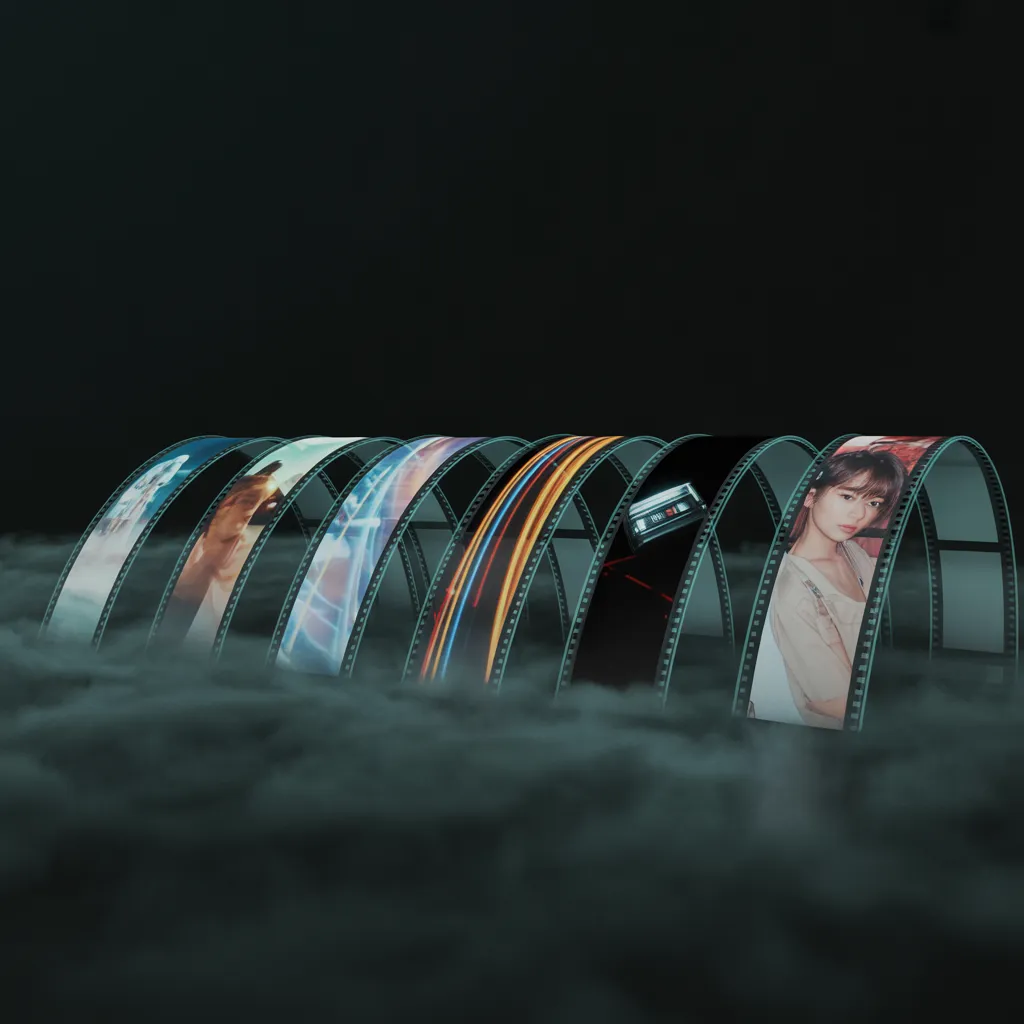
Best AI Video Generators in 2026 (Compared)
A creator's comparison of the frontier video models defining 2026 — Seedance 2.0, Kling 3.0, Veo 3.1, Hailuo 2.3, Wan 2.6, and Grok. What each wins on, and how to pick.

Getting Started with AI Video: A Complete Beginner's Guide
Everything a first-time creator needs to know about AI video in 2026 — what it is, what you can make with it, and exactly how to generate your first clip in under 15 minutes.
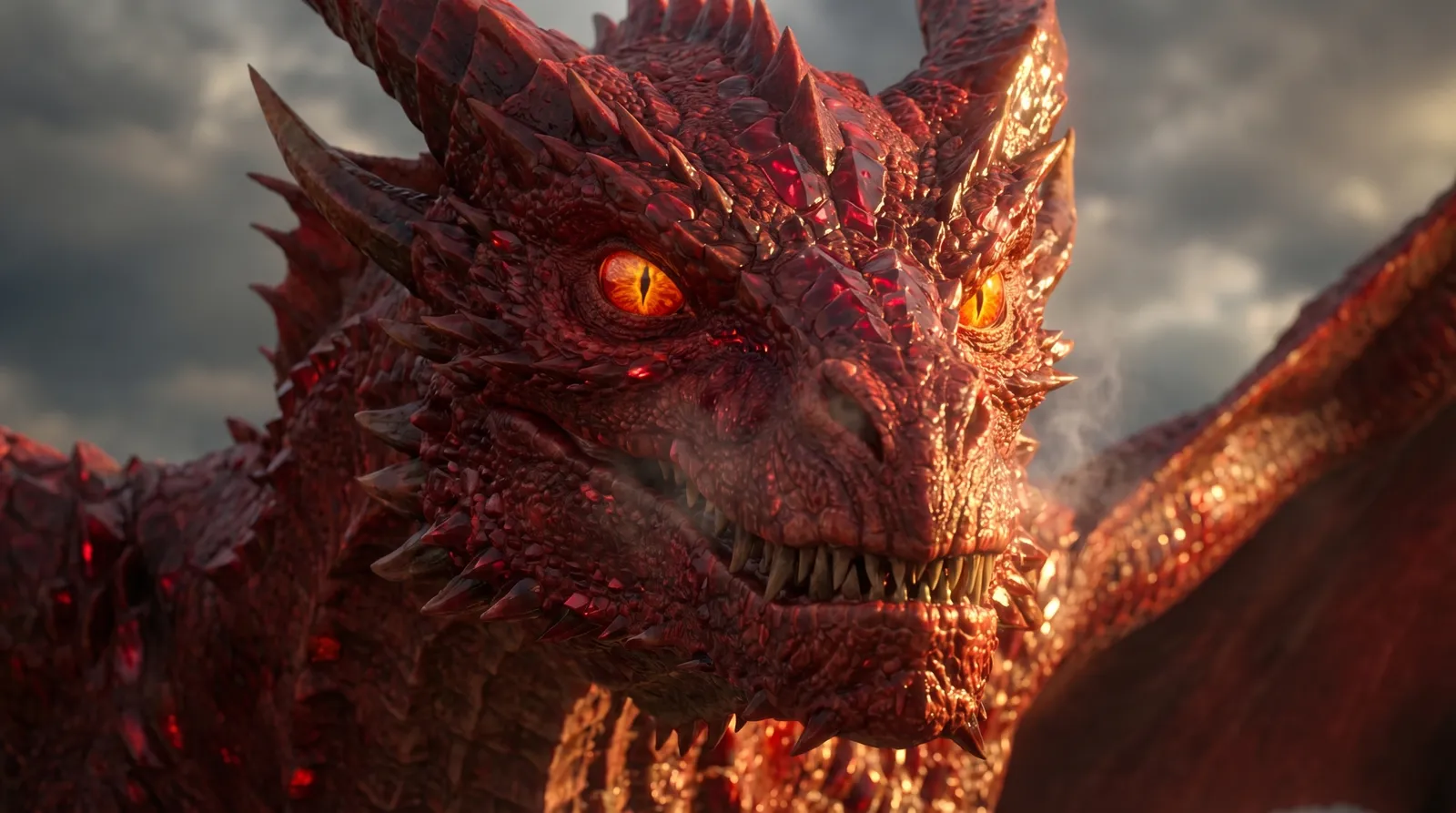
How to Create Videos Using Seedance 2.0
Step-by-step guide to creating AI videos with Seedance 2.0. Learn prompts, workflow, and pro tips to get cinematic results fast.